 Community Portal
 Note: In the release 1.1 there was a bug when you publish an article with no read more, an Invalid mark-up error popped up. This error has been fixed. Kindly download the new package from the link given below.
Hi everyone,
As foretold, I am a GSOC 2009 student entrusted with the responsibility of constructing a desktop interface for article management in Joomla! using xmlrpc in the backend. I feel great pleasure in giving you Joomla Desktop APplication Interface (JDAP_v1.0). I hope you like the features implemented. the upcoming discription makes you more familiar to the application.
You can download the application package using the following link http://joomlacode.org/gf/download/frsrelease/10991/43623/JDAP_v1.1.zip
You can download the source from the following link http://labs.joomla.org/svn/labs/playground/people/rverma/JDAP_v1.1/
JDAP is a platform independent desktop application built on Adobe Flex 3 and uses Adobe AIR as runtime environment
Installing the application
The process of installation is completed in two basic steps:
a. Installing AIR installer
- Install Adobe AIR Runtime Environment if not present.
- Install the application using the JDAP_v1.0.air file.
b.Installing the XML-RPC plugin
- Install the XML-RPC plugin provided in the package on your Joomla! installation using the extension manager.
- Enable the plugin.
- Set the default article category (If not specified).
- Set Single Category Mode to No (If it is yes).
- Then goto Global Configurations ---> System -----> System Settings and make Enable Web Services = Yes.
- Save the configurations and exit.
Application Features and Usage
JDAP provides a user three basic services :
- JDAP-Editor : xmlrpc base editor
- JDAP-Web : a web browser
- JDAP-NoteBook : a notebook to scribble.
Lets explore each of the individually.
JDAP-Editor
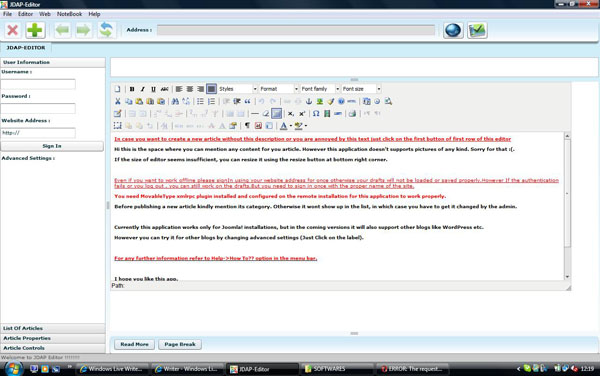
This is thee main service provided by the application. JDAP-Editor is an interface using which you can create and publish new articles, edit the already existing ones, and delete them permanatly. You can also cahnge categories of the published articles. The application uses xml-rpc to communicate all the requests to the native Joomla! installation. The editor also provides you with facility to save the articles on local systems, edit them in the offline mode and publish them later when connected.
JDAP-Editor has following components :
Contol Panel
The control panel consist of the following sections :
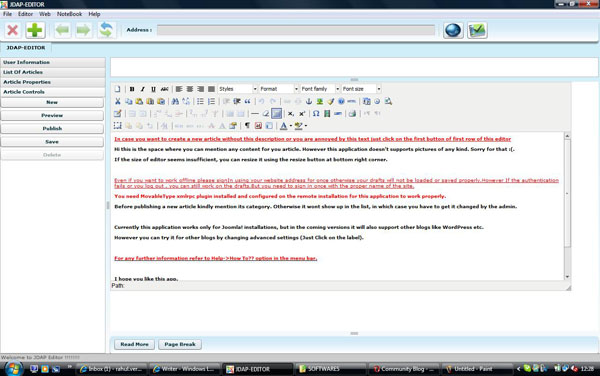
User Information: This section includes all the controls you need to provide the editor to connect to you website.
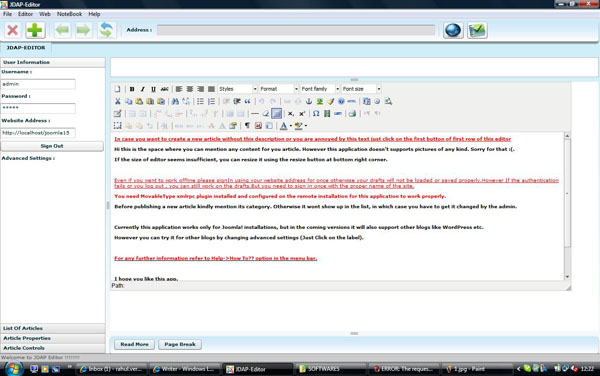
Article List: This section shows the lists of all the published articles and saved drafts.
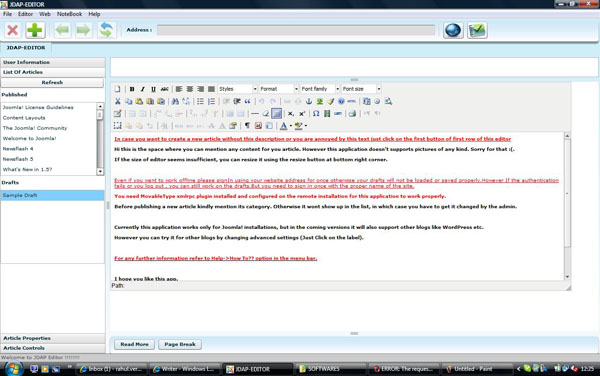
Article Properties: This section shows the list of all the categories available on your website under which you can publish an article. You can set the category of a saved draft or you can update the category of a publshed article using this section.
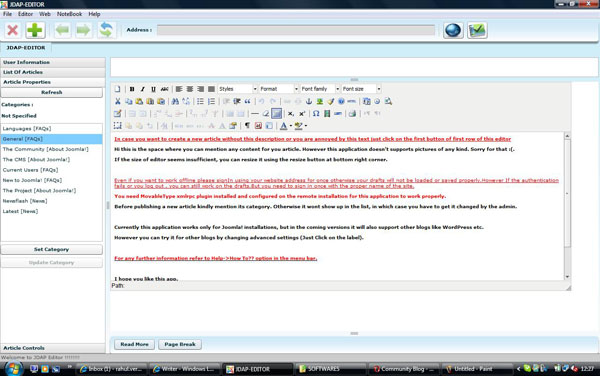
Article Controls: This section incorporates the basic function required for article mangement, like NEW, PREVIEW, PUBLISH, SAVE, and DELETE. The controls can be used to perform the operations depicted by their names.
Editor Panel
The editor panel consist of following sections :
Title : This is a text area in which you have ot enter the title of the article.
Text Editor : The application provides TinyMCE editor for writing the body mof the article.
Text Editor Extensions : These include the ReadMore and PageBreak buttons.
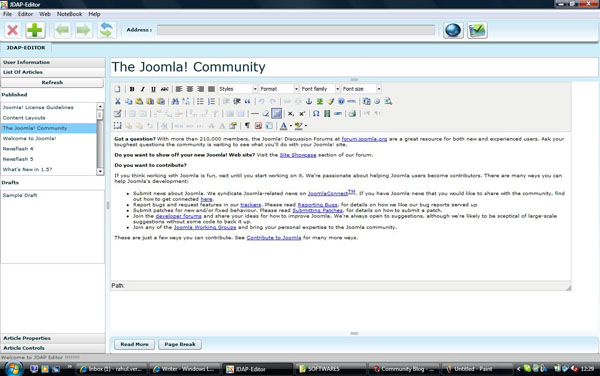
The editor panel has been made to closely resemble the counterpart on a regular installation. When you select an article in the published list or the drafts list from the article list section its title and contents are displayed in the respective sections.
Multi-tabbed(mutiple articles) Editing
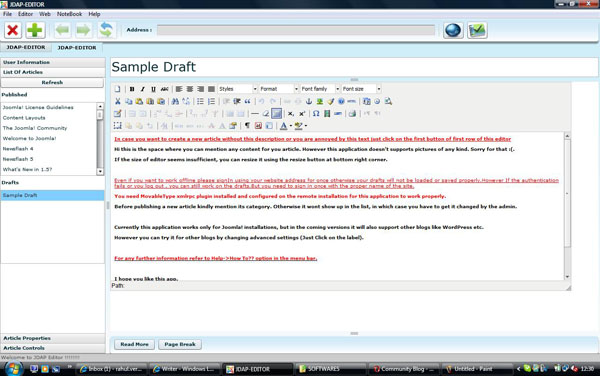
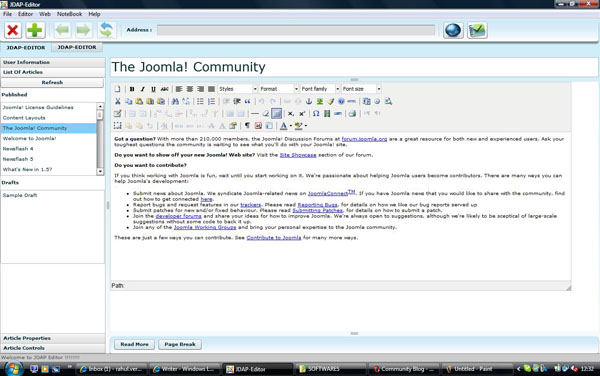
JDAP-Editor provides you withe facility to edit multiple articles from same or different sites simultaneously both in offline and online mode. All you need is to open a new editor tab (use "Ctrl+e" or New Tab Button), login in using the required the info and start editing the required article. The gist is that every editor tab acts as single client editing one article at a time of any site.
Offline Editing
For editing articles in the offline mode use the following steps :
- Log in using the proper site address. Even though you are working in the offline mode, still the application requires you to sign in using the proper info because it uses this information to manage the drafts on the local system. Hence for the sake of proper storage an listing of drafts when required, its necessary that you login using proper info before proceeding any further failing which you may even lose your work.
- Create and edit the articles as you want and save them. You can retreive the next time you login onto your site.
Issues
- Using this editor you cannot insert images in your articles. The problem is that file uploading using xml-rpc could not be handeled well. If anyone can help in this direction then it would be great. However you can edit images that have been already been a part of the article.
- When you insert a readmore using the readmore button in the editor then it comes out to be of RED color, while the pagebreaks appear to be of grey color. However if you view an already saved draft or a published article containing readmore and pagebreaks, they all have the same appearance, thus making it hard to differentiate. So you need to be carefull in this context. I tried to correct this but no success in this direction. If anyone can help then its greatly welcomed.
JDAP - Web
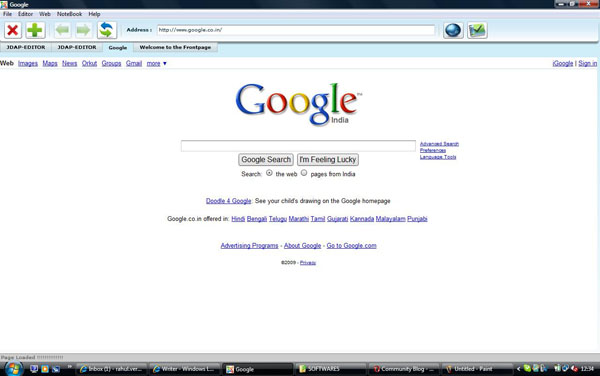
JDAP-Web is the component which helps you to access the web. Its an inherent web browser. The require controls are provide in top application control bar. You can access any website by entering the address in the TextInput labelled as Address and press enter. You can reload, move backward and forward just like in case of a normal browser.
You can open multiple browser tabs by clicking on the Open Web Browser Button or "Ctrl+t".
Issues
The web-browser component has certain javascript execution issues. It would be great if you can list all those instanses as comments.
JDAP - NoteBook
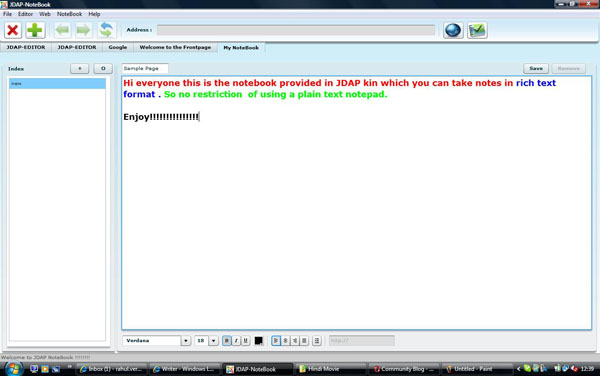
This component is a NoteBook to take notes in Rich Text Format. The main features are:
- All the data is saved in form of pages, whose title is listed in the Index panel.
- Use the "+" button to open new page of the notebook.
- Use "O" button to open a previously created page.
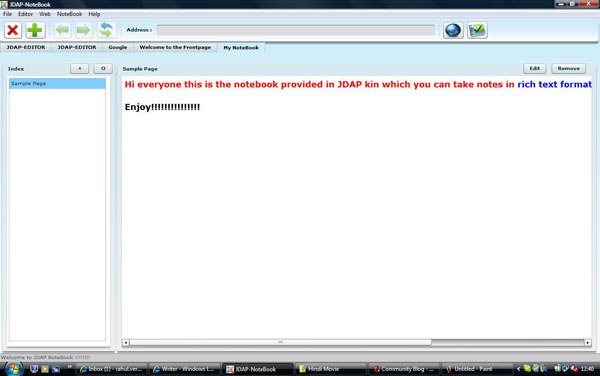
- For deleting a page, select it in the Index panel and click on the remove button.
- For editing a page, select it and click on the edit button.
I hope that using this application proves fun and not a headache. Well in any condition your comments are valuable.
Enjoy!!!!!!
Regards,
Rahul Verma
